Reconcile your cash register, start a new period and keep an action history
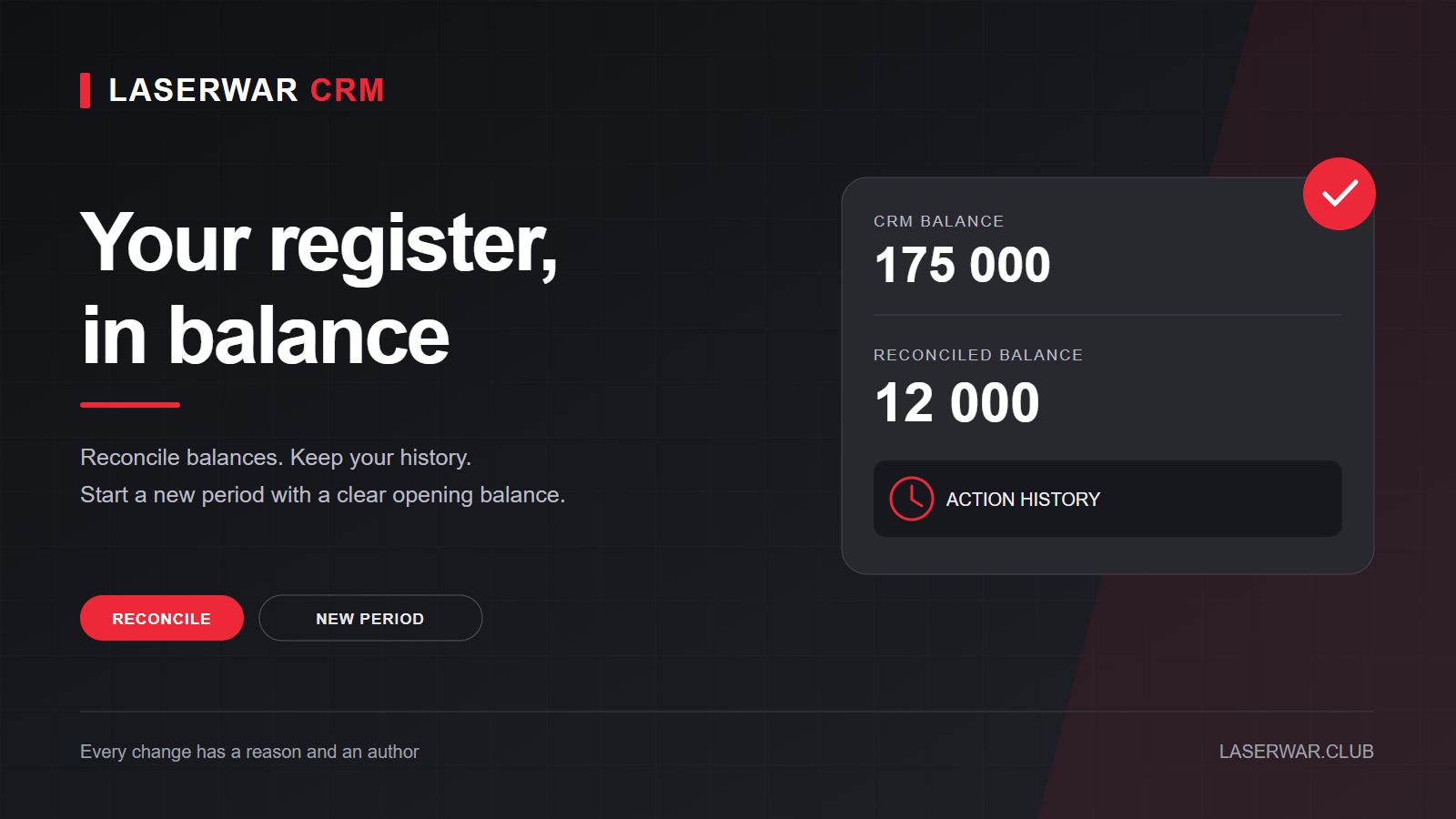
Illustration of register management features.
Reopening after a seasonal break can leave an old balance in your CRM. You can now reconcile the actual amount while keeping your income and expense history.
Each register card has an actions menu and a history icon. The history shows the employee, date, reason and balance before and after each action.
Practical uses
- Reopening your venue. Reconcile the available amount or start a new period with a clear opening balance.
- Retiring an off-site register. Archive it to remove it from new payment selections while preserving its reports.
- Clearing training transactions. Remove the transactions while keeping the register name and employee access. A downloadable snapshot is saved first.
Reconcile a balance
- Open Cash register and use the three-dot menu on the relevant card.
- Select “Reconcile balance”.
- Enter the actual amount and a reason. Include all payment methods held in that register, such as cash and card payments.
- Review the resulting balance and correction, then confirm.
- Open the history icon on the card to check the saved entry.
Balance corrections are stored separately from receipts and expenses, so they do not create artificial revenue or expenses. “Reset balance to zero” sets the actual balance to zero while keeping earlier transactions.
Start a new period
Select “Start a new period”, enter its opening balance and explain the reason. The period begins when you confirm. The journal shows new transactions; “All periods” opens earlier history. Closed-period transactions remain readable and stay in reports.
Clearing and deletion
“Clear transactions” removes cash transactions and resets the balance while keeping the register and access settings. “Delete register” also removes the register itself. Both actions change cash reports. Use reconciliation for a simple balance mismatch.
You must enter a reason and the exact register name to confirm. You can download the transaction snapshot from the action history even after deletion. Order payment marks remain unchanged; stock and redeemed certificates are not automatically reversed.
To reactivate an archived register, open Archive and choose “Restore register” from its menu. Register management and action history are available to the venue owner and manager.