Your booking form on your website Five layouts, your colours and CRM notifications
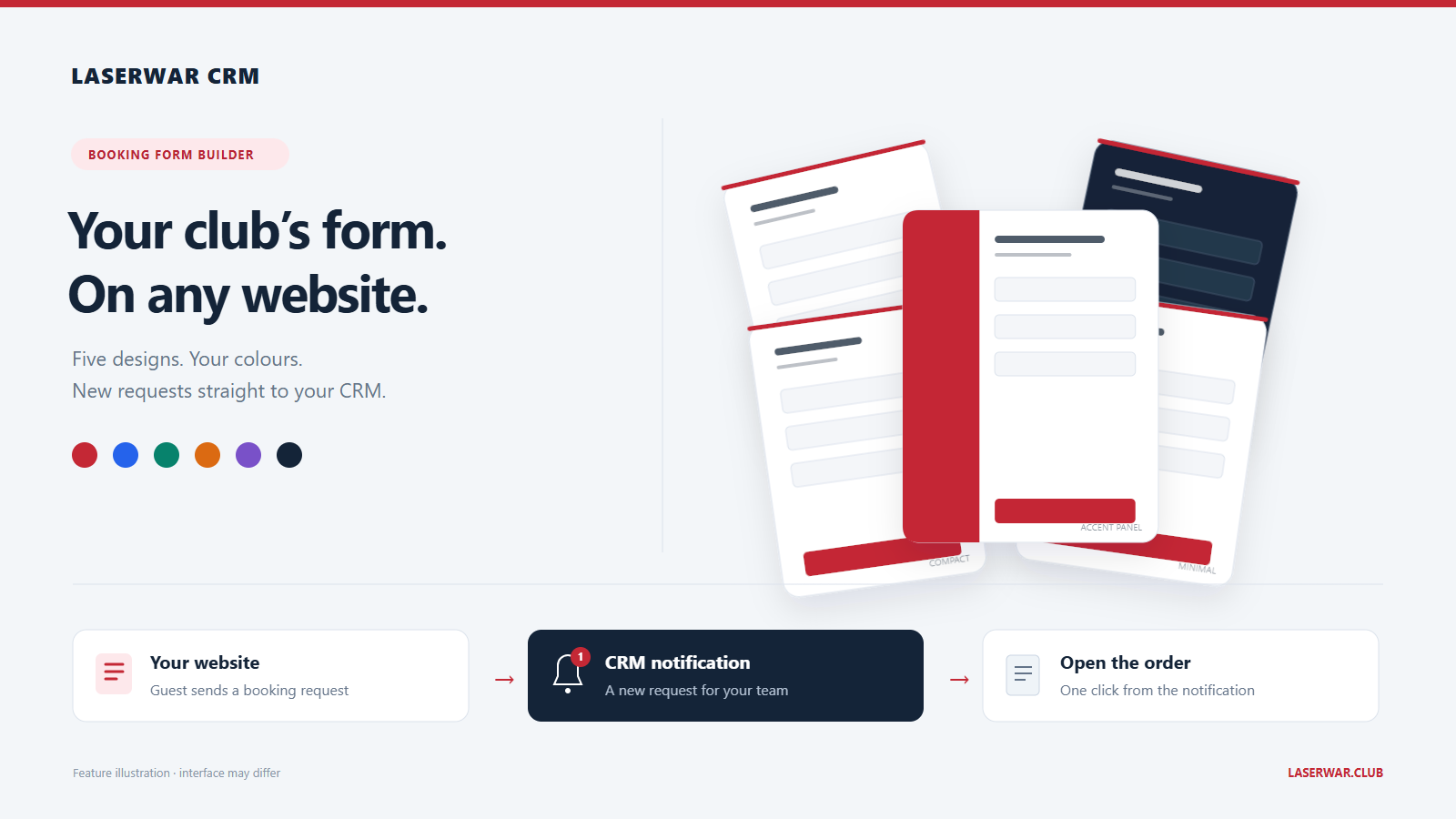
Your website's booking form can now be configured in LASERWAR CRM. Choose a layout, colours and fields, then paste the embed code into your page. Each submitted request creates an order and a notification for your team.
Five layouts for different pages
- Card — a familiar form with a clear colour accent.
- Compact — a smaller layout for a narrow page section.
- Accent panel — an invitation to play next to the booking fields.
- Arena — a distinctive layout for a gaming club.
- Minimal — a simple form that fits into your existing page design.
Change the accent, background, corner radius, heading, description and button text. The live preview switches between desktop and phone widths. Previewing the form does not create a booking.
Choose the details your club needs
Name, phone, date and start time are required. Checkboxes control game type, venue, duration, number of players, email and comments. “Select all” enables every optional field.
Hidden duration defaults to one hour, and hidden player count defaults to one. Hidden game type and venue use the first active option in your club's configured order. Your team can confirm the details in the resulting order.
Install the widget
- Open Settings → Widgets → Order form.
- Choose the layout and fields, then adjust the colours and text.
- Click Save widget, followed by Copy code.
- Paste the snippet into an HTML block where the form or button should appear.
- Reload your website and check the result. Use your own test details for a trial request.
You can show the form inside the page or open it in a popup from a button. Paste the code once. Future changes are made in the CRM and appear after the website page is reloaded.
Go directly from a notification to the order
Each submission creates a new order and a CRM bell notification. While your team keeps the CRM open, it checks for new website requests every 15 seconds. Click the notification or “Open order” to go straight to that specific order.
The form checks working hours, game duration and venue availability. It checks the time again before saving. This is a booking request: your club confirms the time and game details with the guest.
Practical examples
Birthday page: enable player count and comments for special requests. General booking page: offer a choice of game type and venue. A small landing page section: choose Compact or a button that opens the form.