To work with the list of clients, go to the subsection of the same name. The central part of the window displays a list of club clients.
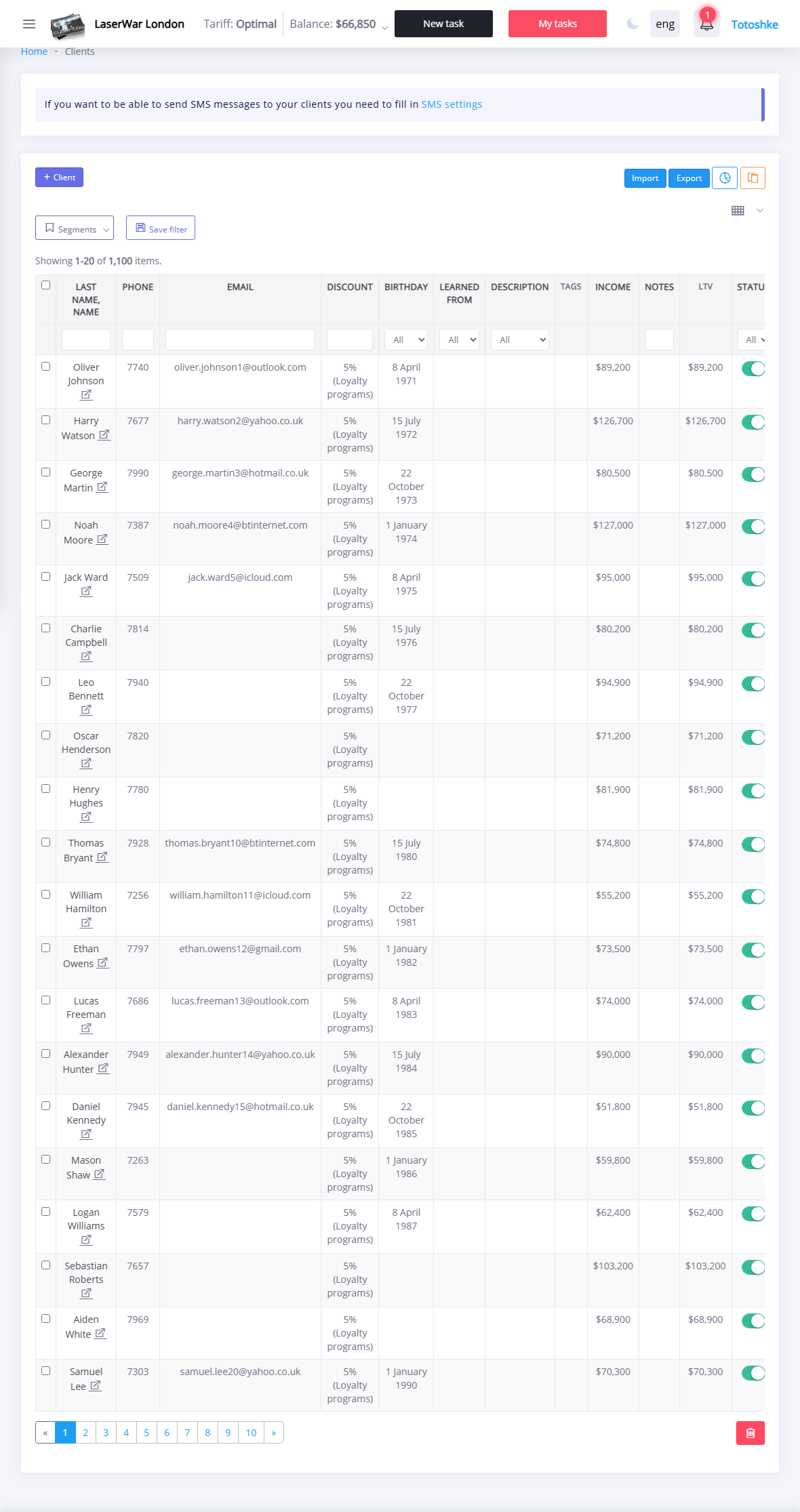
The parameters displayed in the table can be customized as you wish. To do this, click the  and uncheck the boxes next to the columns you want to hide. Click the Save button to apply the settings.
You can filter the list of clients by the value of any column by entering the corresponding value in the first row of the table.
To save the list of clients in *.xlsx format, click the Export button.
To enter client data into the system, click the +Client button. Entering client data is described in detail here. You can also download information about clients from a *.xlsx document. Such a document must contain columns with the following names (required columns are marked with asterisks): name*, telephone*, discount (percentage without the "%" sign), where you learned about us*, note. Click the Import button, in the window that opens, specify the path to the document and click the Import button to load the data.
Data of previously entered positions can be changed by pressing the in the title line. Items added manually can also be removed using the . To delete several values at once, check the boxes next to them on the left side of the list and click the . To prevent an inactive client's data from being displayed in selection lists without being removed from the system, turn off the switch in the Status column.
SMS newsletter
The system allows you to send bulk SMS messages to clients (they are performed in the section "Settings" - "General settings"). To do this, check the boxes in the left column opposite those clients for whom the mailing is being carried out (to select all clients at once, check the box in the table header), and click the . This opens a window indicating the number of recipients and where you can enter the text of the SMS message. To Send a message, click the appropriate button.
Also to send SMS to one client, click the in the cell with his phone number or date of birth. In the window that opens, you must enter the message parameters: Phone is filled in automatically from the client card, the message text must be entered manually in the SMS field or selected from the Template list (their creation is carried out in the section "Settings" - "Mailout" - "Templates sms"; if necessary, the phone number and template text can be changed).
On the Sending history tab you can view a list of all SMS messages sent to clients and their delivery status.