When you open the "Cashier" subsection, a window with cash register data is displayed on the screen, as well as a list of cash receipts and debits at various cash desks.
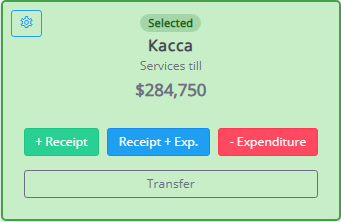
On the left side of the window there is a list of cash registers. Adding a cash register to the list is described in detail here.
To create a transaction for the cash register, click the appropriate button.
Arrival
The receipt of funds into the account is reflected here. When you click on the Receipt button, an additional window opens in which you must fill in the following fields (required fields are marked with asterisks):
- Application - select an application to automatically fill in the data of received funds and track their movement. The field is filled in by selecting an application from the list that opens when you click the Select application button. The list can be shortened by entering the application number or client's last name in the field. To clear the field, click the
 . The list displays only those applications that indicate payments not previously made, i.e. Fully paid applications are not available for selection;
 - Client - client’s last name. When selecting an application as the basis for payment, the Client field is filled in automatically with application data;
- Amount - the total amount credited to the account. The field is filled in using the keyboard or automatically when you select an application. If an application is selected, the system displays financial data in additional fields: prepayment amount, payment amount, total expected cost of the game. To conduct a transaction, select the Make an advance payment or Make a payment checkbox, respectively. When reselecting an application, the payment made is marked in red to prevent repeated processing;
- Pay with a certificate - when you click on this link, an additional field opens in which you can enter the gift certificate code (gift certificate codes are generated in the section "Settings" - "Payment" - "Certificates"). After clicking the Apply button, information about the amount that is paid with the certificate is displayed (for certificates with the “Free game” type, the amount is equal to the full cost of the game);
- Payment option - creating a list of payment methods is described in detail in the section "Settings" - "Payment" - "Payment methods";
- Comment - text note;
- Cashier - the name of the user who registered the transaction (by default it is filled in with the data of the current user).
After entering the data, click the Save button to apply the changes.
Consumption
The debiting of funds from the account is reflected here. When you click the Consumption button, an additional window opens in which you must fill in the following fields (required fields are marked with asterisks):
- Products - selection of a list of goods for purchase. The sales amount will be calculated automatically based on the cost and quantity of the selected goods;
- Amount - the total amount debited from the account. The field is filled in using the keyboard;
- Payment Option - payment method. Creating a list of payment methods is described in detail in the section "Settings" - "Payment" - "Payment methods";
- Comment - text note;
- Cashier - the name of the user who registered the transaction (by default it is filled in with the data of the current user).
After entering the data, click the Save button to apply the changes.
Income + Expense
A complex option that displays multidirectional movement of funds between accounts. When you click the Receipt + Expense button, an additional window opens in which you must fill in the fields described in the relevant subsections (required fields are marked with asterisks).
After entering the data, click the Save button to apply the changes.