In the "Clients" subsection, analytical reports are available that display customer base data in the following sections: the number of new clients and the source of information about your club. These reports are generated for the selected period in comparison with the previous one.
Clients
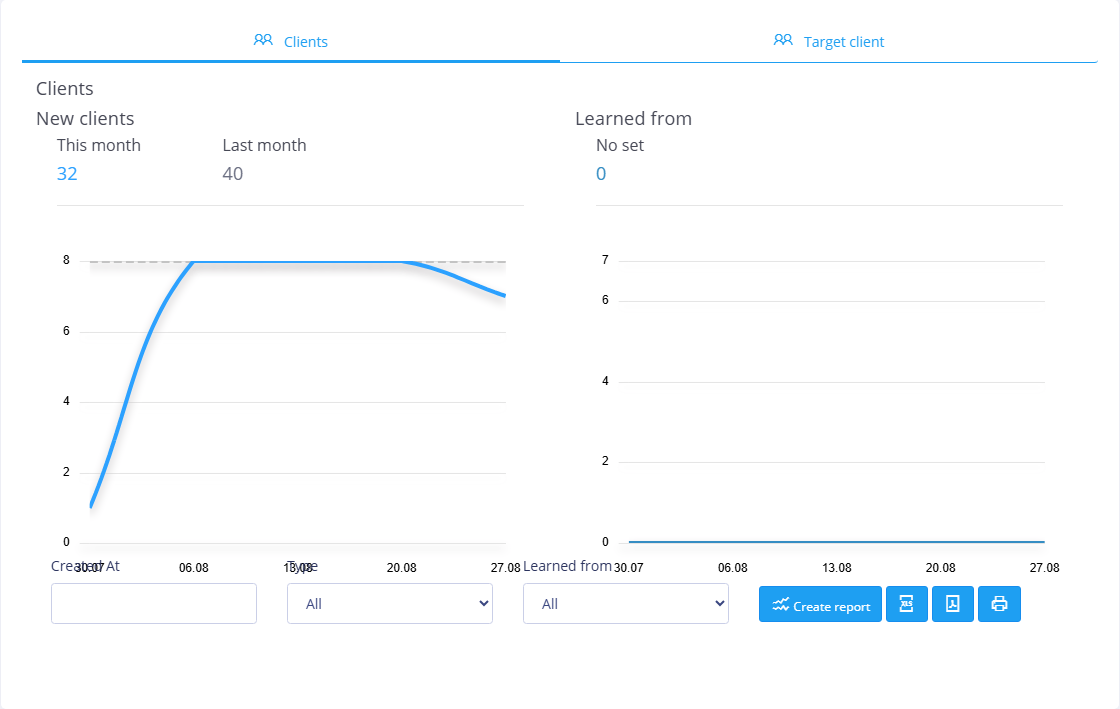
The Clients window displays the dynamics of the total number of new clients (on the left) and by source of information about the club (on the right).
 For ease of comparison, data from the previous reporting period is presented graphically as a dotted line.
Under the graphical display of data there is a report settings panel:
- Created - the date the client information was entered into the system. The reporting period is set manually from the keyboard (in the format dd.mm.yyyy) through a dash or selected from the drop-down calendar. If the Created field is not filled in, the report is generated without a time limit;
- Type- legal or natural person;
- Where did you find out about us- source of information about your club, which the client named during registration.
Once the report settings are configured, click the Create Report button to apply the changes.
After clicking the Create report button, a pivot table with a breakdown of the report data will be displayed at the bottom of the window. Click the Create report in XLSX format or Create report in PDF button to save the table in the appropriate format. To print the report data, click the  . This opens your browser's standard print settings window.
Target client
In the Target client window you can get information about which types of games are most popular (graph on the left), as well as which age groups most often take part in certain events (graph on the right).
This is how an idea of the target client of your club is formed. It will help coordinate your future activities to attract new players.
In the area below the graphs there is a report settings panel:
- Game type - in this field, from the drop-down list you can select game type for which graphs will be generated. This field is recommended to be filled in to analyze the age groups taking part in different types of games in the "Age Groups" graph;
- Age group- age group of players specified in the application. It is recommended to fill out this field to analyze the types of games in which certain age groups take part, in the “Game Types” graph;
- Venue- venue where the event is held. It is recommended to fill out this field to analyze the most frequently held events at a particular site, as well as to assess age groups and plan further improvement of the site;
- Number of players - the number of participants in the event. The Number of players field is filled in from the keyboard with an integer number.
Once the report settings are configured, click the Create Report button to apply the changes. After this, a summary table with data from your club’s clients will be displayed at the bottom of the window. Click the Create report in XLSX format or Create report in PDF button to save the table in the appropriate format. To print table data, click the . This opens your browser's standard print settings window.