Basic information
In the Basic information area, club data is entered, which is used for correct booking of games, generation of reports, etc.
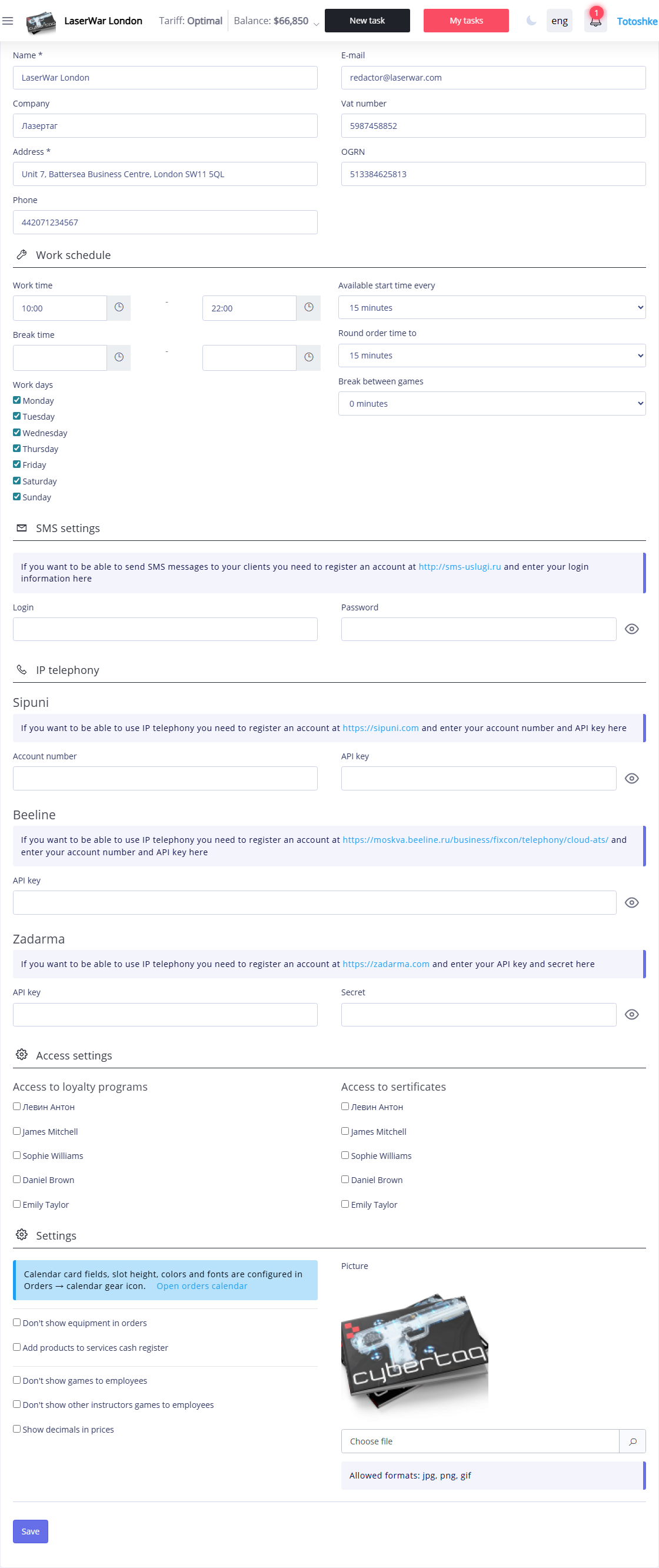
In the appropriate fields, enter the name of the club, data of the legal entity: name, address, telephone, email, INN, OGRN. Required fields are marked with an asterisk.
Working schedule
In the Working schedule area, enter the data necessary for planning and booking games in the "Requests" and "Schedules" sections games".
The following settings are available:
- Working hours - select the club’s working hours from the drop-down lists.
- Lunch - select a lunch break time from the drop-down lists. Game bookings are not available at this time.
- Working days - check the boxes next to the club’s working days. Reservations for games on non-working days are not available.
- Available start time for recording every - specify the frequency of booking games (for example, if you select 15 minutes, you can book an event with a start time of 11.00, 11.15, etc.).
- Round recording start time to nearest - setting the rounding of recording start time when entered manually. For example, the time 11.14 is rounded to 11.00 when the value is "30 minutes" and to 11.15 when the value is "15 minutes".
- Break between games - the period of time from the end of one game to the start of the next on the same site. Reservations for games during the break are not available.
SMS settings
In the SMS Settings area, you should enter the Login and Password of your account on the website http://sms-uslugi.ru in the appropriate fields to enable the ability to send SMS to clients.
IP telephony
In the IP telephony area you can specify the appropriate parameters to enable the Sipuni, Beeline or Zadarma IP telephony function.
To do this, you need to register an account on one of the following resources:
- Sipuni - https://sipuni.com/ru_RU/,
- Beeline - https://moskva.beeline.ru/business/fixcon/telephony/cloud-ats/,
- Zadarma - https://zadarma.com/ru/.
Work with IP telephony is performed in the section "IP telephony".
Settings
In the Settings area, you can specify the parameters of the calendar in which requests are generated and games are scheduled.
Check the boxes next to the types of data you want to display on the calendar for scheduled games.
If there is no need to keep track of equipment when creating an application, check the box Do not keep track of equipment in orders.
In the Image field, upload your club logo in *.jpg, *.png or *.gif format. Recommended resolution 500x500 px.
Click theSave button to apply the changes.