In the "Other" subsection, analytical reports are available that display data from sent SMS and a log of logins to the CRM system. These reports are generated for the selected period in comparison with the previous one.
SMS
The SMSwindow displays the dynamics of the number of messages sent.
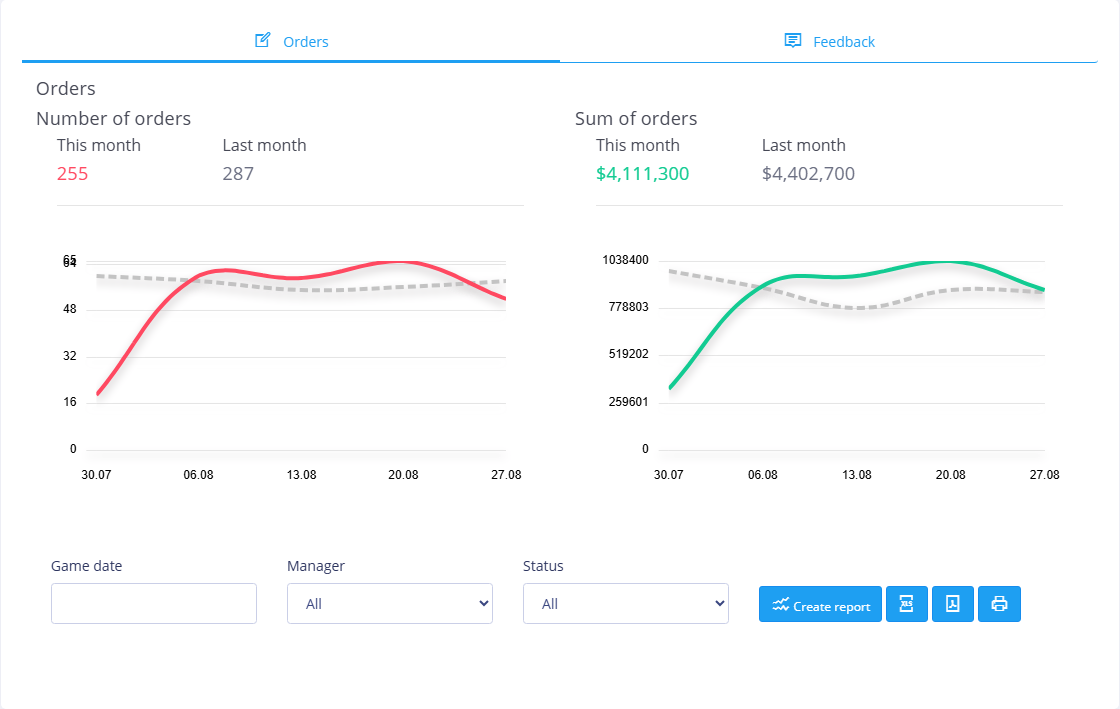
For ease of comparison, data from the previous reporting period is graphically presented as a dotted line.
Under the chart there is a report settings panel:
- Created - reporting period, including the dates of sending SMS messages. The period is set manually from the keyboard (in the format dd.mm.yyyy) through a dash or selected from the drop-down calendar. If the Game Date field is not filled in, the report is generated for the current calendar month;
- Phone- phone number of the SMS recipient;
- SMS- the text of the SMS message or part of it.
Once the report settings are configured, click the Create Report button to apply the changes. After this, a summary table with a breakdown of the report data will be displayed at the bottom of the window. Click the Create report in XLSX format or Create report in PDF button to save the table in the appropriate format. To print the report data, click the  . This opens your browser's standard print settings window.
History of logins to the CRM system
In the window History of logins to the CRM systema graph is formed with the dynamics of user authorization in the system.
Under the chart there is a report settings panel:
- Created - reporting period, including dates of user authorization. The period is set manually from the keyboard (in the format dd.mm.yyyy) through a dash or selected from the drop-down calendar. If the Created field is not filled in, the report is generated for the current calendar month;
- User- the user for whom the chart is being generated.
Once the report settings are configured, click the Create Report button to apply the changes. After this, a summary table with a breakdown of the report data will be displayed at the bottom of the window. Click the Create report in XLSX format or Create report in PDF button to save the table in the appropriate format. To print the report data, click the . This opens your browser's standard print settings window.