Why is this section
This is the working screen of the shift: which games are already in the bracket, who is leading, how many players and which area is occupied.
| Requests | Game schedule | |
|---|---|---|
| What is it | Funnel: reservations, statuses, prepayment | Shift: what is already being done |
| Who is watching | Administrator / sales | Instructor / change |
| Essence | Agreement with the client | Fact in the grid: who, when, what site |
Application - agreement. Here is a fact that the instructor sees before starting. For unconfirmed reservations, see the "Requests" section.
The "Game Schedule" section is intended for planning events held in your club.
To work with the schedule, go to section of the same name.
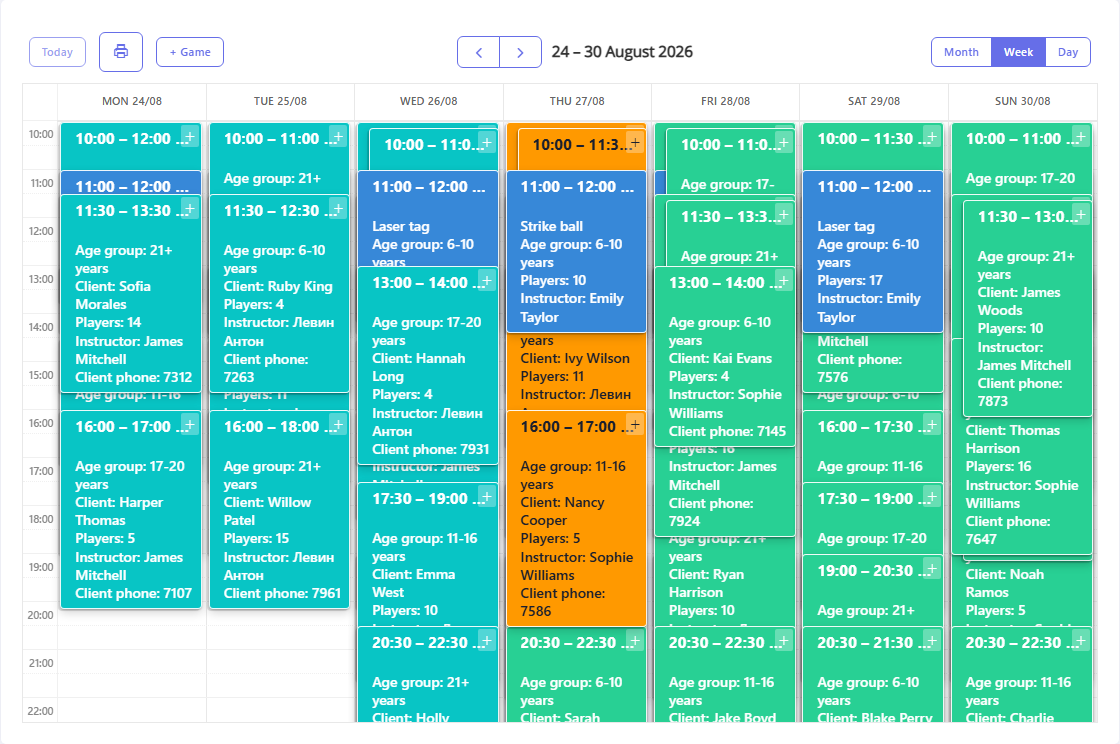
The window that opens will display a list of scheduled games in the form of a calendar (at the top of the window) and in the form of a table (at the bottom of the window).
Calendar area
Representing the game schedule in the form of a calendar is most convenient clearly shows your club's planned events.
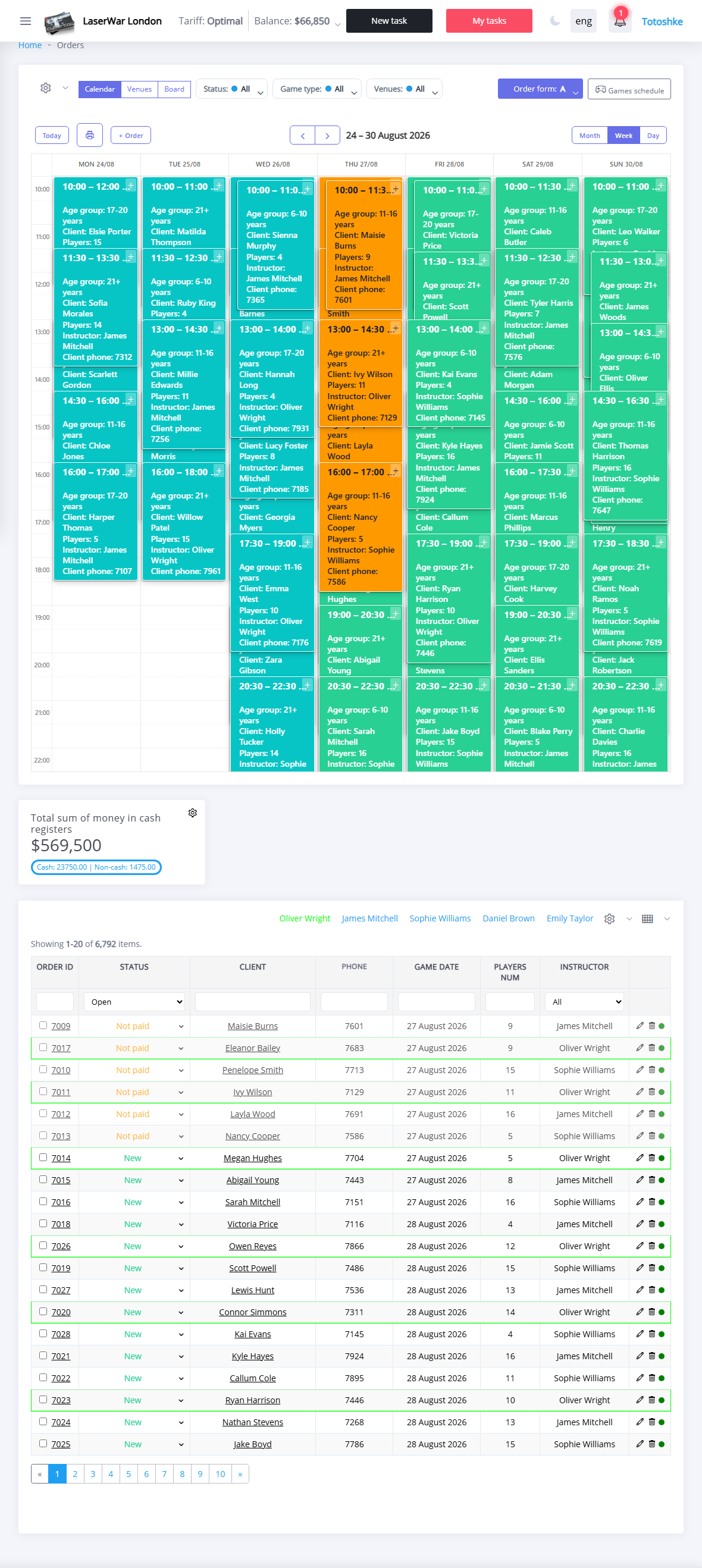
Here you can see both games for which customer requests have been entered into the system (to do this, go to the "Requests" section), as well as events planned without generating requests: open games, festivals, etc. (adding data for a new game is described in detail here). Games scheduled based on customer requests are displayed in blue and cannot be changed. Games scheduled without calls are colored differently depending on the instructor. Data for such games can be changed using the  , and also add players using the + button.
You can adjust the detail (displaying games by month, week or day) using the buttons in the upper right corner of the window. To move to earlier or later entries, use the and respectively. You canyou can quickly return to entries for the current date by clicking the Today button.
The schedule of applications in the form of a calendar can be printed using theth button . When you press itit opens the standard window of your printing parameters browser.
Games area
Representation of scheduled games in the form of a list allows you to get the most informative data about open games running in your club This list only shows events scheduled without customer requests.
You can filter the list by the value of any column by entering the corresponding value in the first row of the table.
To schedule a new event, click the +Game button (details on adding new game data are described here). To change the previously entered data, click the link with the game date and time in the Game Date column. To delete positions, use the .