In the "Mail Templates" item, you can configure your club's mailing templates to clients' emails. When creating a new newsletter "Settings" - "Newsletter" or setting up email alerts in the "Clients" section, you can simply select a previously created template from the list and edit it instead of entering text each time manually.
The central part of the window displays a list of templates.
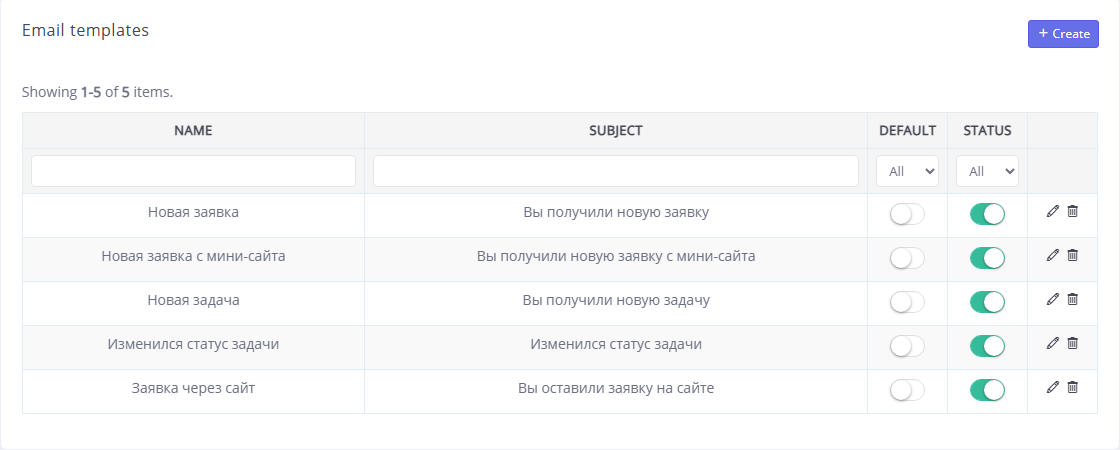
You can filter the list by the value of any column by entering the corresponding value in the top row of the table. You can mark one template Default. It will be listed first in the selection lists. Also, Status is indicated for templates: "Enabled" or "Disabled". Disabled templates will not be offered in selection lists.
You can change the data of a previously entered position by clicking the  in the line with its name. Positions can also be deleted using the . To delete several values at once, check the boxes next to them on the left side of the list and click the .
To add a new template, click the Add button. In the window that opens, specify the Name of the template, indicate the subject of the letter in the field of the same name and enter the text of the message in the Template field.
When editing template text, you can use the following variables:
- Name - name client;
- Date - date;
- Time - time.
Click theSave button to apply the changes.