In the "Categories" item you can configure the list of available categories for your club's employees. They are necessary for further analytics in the "Reports" - "Financial" section, as well as for setting up the parameters for calculating salaries for employees.
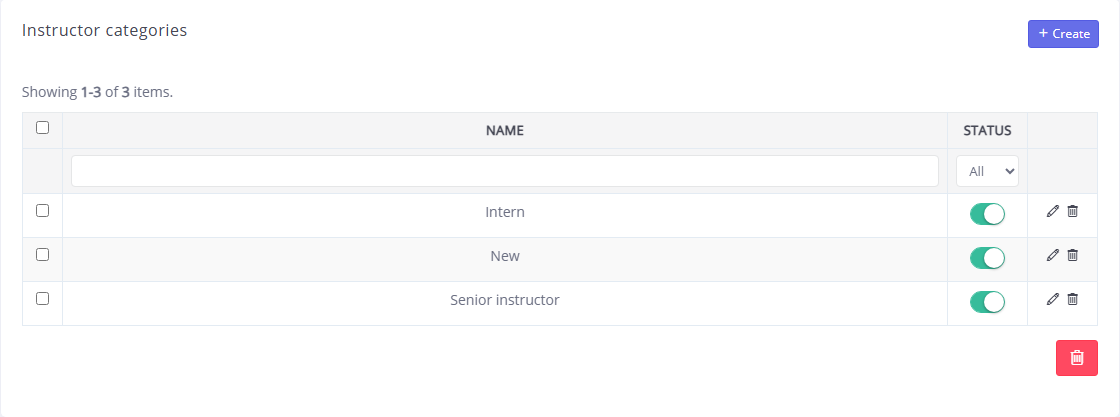
By default, CRM has three categories: “Trainee”, “Newbie” and “Senior Instructor”. You can change the data of a previously entered position by pressing the  in the title line. You can delete positions using the . To delete several values at once, check the boxes next to them on the left side of the list and click the .
To create a new category, click the Add button. In the window that opens, you can set the name of the category, configure the parameters for crediting salaries to employees in the category, and set its status. Enter the name of the category in Russian and (if necessary) in English in the appropriate fields.
In the Salary settings area, you can specify the parameters for crediting employee salaries. To do this, in the fields of the same name, enter Percentage of revenue that goes into salary (in this field you must specify a number from 0 to 100, for example, 30 for 30%), Percentage of the cost of services that goes into salaryand/or Cost of one hour. You can select from one to three options. The amount of salary accrued to the employee will depend on the values you specify.
At the bottom of the Salary settings area, bonuses for the employee are set. To do this, in the column of the same name, enter the amount (in rubles) and indicate, for example, the range of players in the Number of players fields (from - to). The amount specified in the Bonus column will be credited to the employee if the conditions are met (in this case, the number of players who took part in the event must be within the specified range). If necessary, you can Add a row with the bonus type to the table or delete it using the .
For each position you can specify its Status: "On" or "Off". Employee categories with the status "Disabled" are not deleted from the system, but are no longer displayed in selection lists. We recommend not deleting outdated values from the system, but assigning them the status "Disabled" in order to save the entire history of changes and, if necessary, quickly return the value to the list.
Click theSave button to apply the changes.