One calendar, two booking types
Orders is the main calendar. + Order opens the ordinary group-booking form immediately. The separate secondary Open game button on the right creates a game that people join individually. Payment does not turn a group booking into a separate game.
Open games have a venue, event format, instructor, reserved equipment, price per player and optional player limit. Venue and format are different fields. Save the game, then add existing clients under Participants; create a new client in Clients first. Public registration closes when the game starts. The player limit and manual closure/cancellation apply to all joins. Staff may register a late arrival if registration is not manually closed and places remain.
Each participant has separate prepayment and payment records. A received part cannot be posted twice. Paid participants remain in history; refunds are handled separately in the cash register. Cancelling releases resources but does not refund money.
Both types are always shown in the shared calendar. Ordinary bookings keep their usual colours without a Group booking label. Only open games have a fixed purple Open game badge and icon to the right of the time. There is no booking-type selector or separate type-colour setting. Date and venue filters apply to both types; an order-status filter applies only to ordinary bookings.
On a phone both types appear in the day list. Tap to open the matching form; + Order opens a group booking directly; the separate Open game button creates an individually booked game. Existing game/participant identifiers, payments and public join links remain. Historical games without a venue appear under All venues; choose a real venue when editing them.
The "Application" section is intended for registering applications for various events in your club and their further analysis.
To work with requests, go to "Requests" in the main menu.
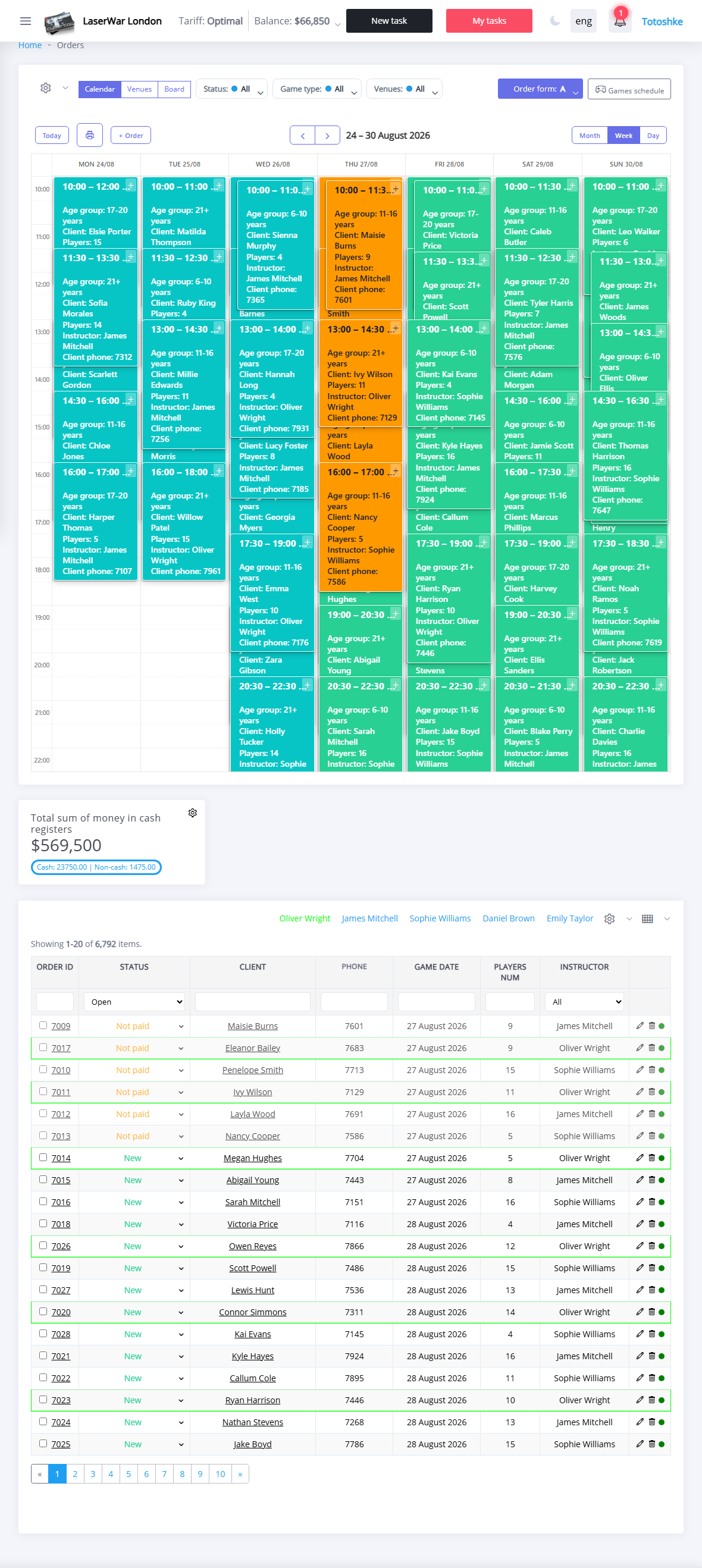
The window that opens displays a list of previously entered applications in the form of a calendar (at the top of the window) and in the form of a table (at the bottom of the window).
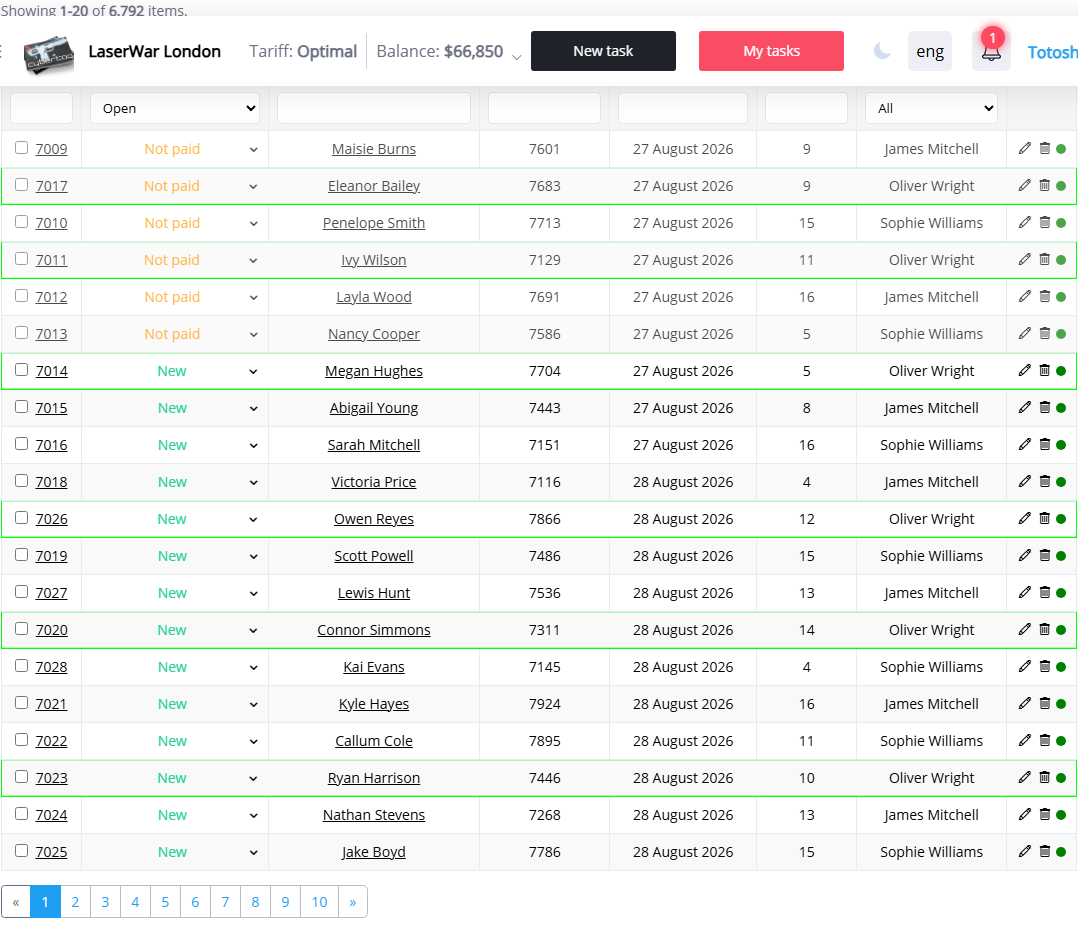
In Settings you can select the most convenient option for displaying applications and disable unnecessary ones.
Also in this window you can configure the display order (to do this, hold down the  and set the parameters in the desired order). The creation of an application is described in detail here.
Calendar area
Displaying applications in the form of a calendar most clearly shows the schedule of your club's events. You can configure the detailing (display of requests for a month, week or day) using the buttons in the upper right corner of the window. To move to earlier or more recent entries, use the and accordingly. You can quickly return to entries for the current date by clicking the Today button.
You can configure the display of applications of only one type of site - to do this, use the filter in the upper right corner. To reset the filter, select "All" from the list.
Requests displayed in the form of a calendar can be printed using theth button Displaying applications in list form allows you to get the most informative data about the events held in your club. You can filter the list by the value of any column by entering the corresponding value in the first row of the table. The set of columns is also easy to customize using the For additional visualization, you can configure application fields to be colored in different colors according to specified criteria, such as game types, instructors, site types, etc. To do this, click the In this case, the colors of the requests will be determined automatically, and a legend will be displayed at the top of the area. In the Requests area, you can also select a cell coloring method - Borders - Requests or Cell Fill.. When you click it, the standard window for setting up your browser’s print settings opens.Application area
- when you click it, a drop-down list is displayed in which you should check the boxes next to the names columns displayed on the screen.Changing order colors
in the appropriate area - Calendar or Requests - and select a criterion in the Set request color depending on field.