Your game calendar on your website Choose events, appearance and booking options
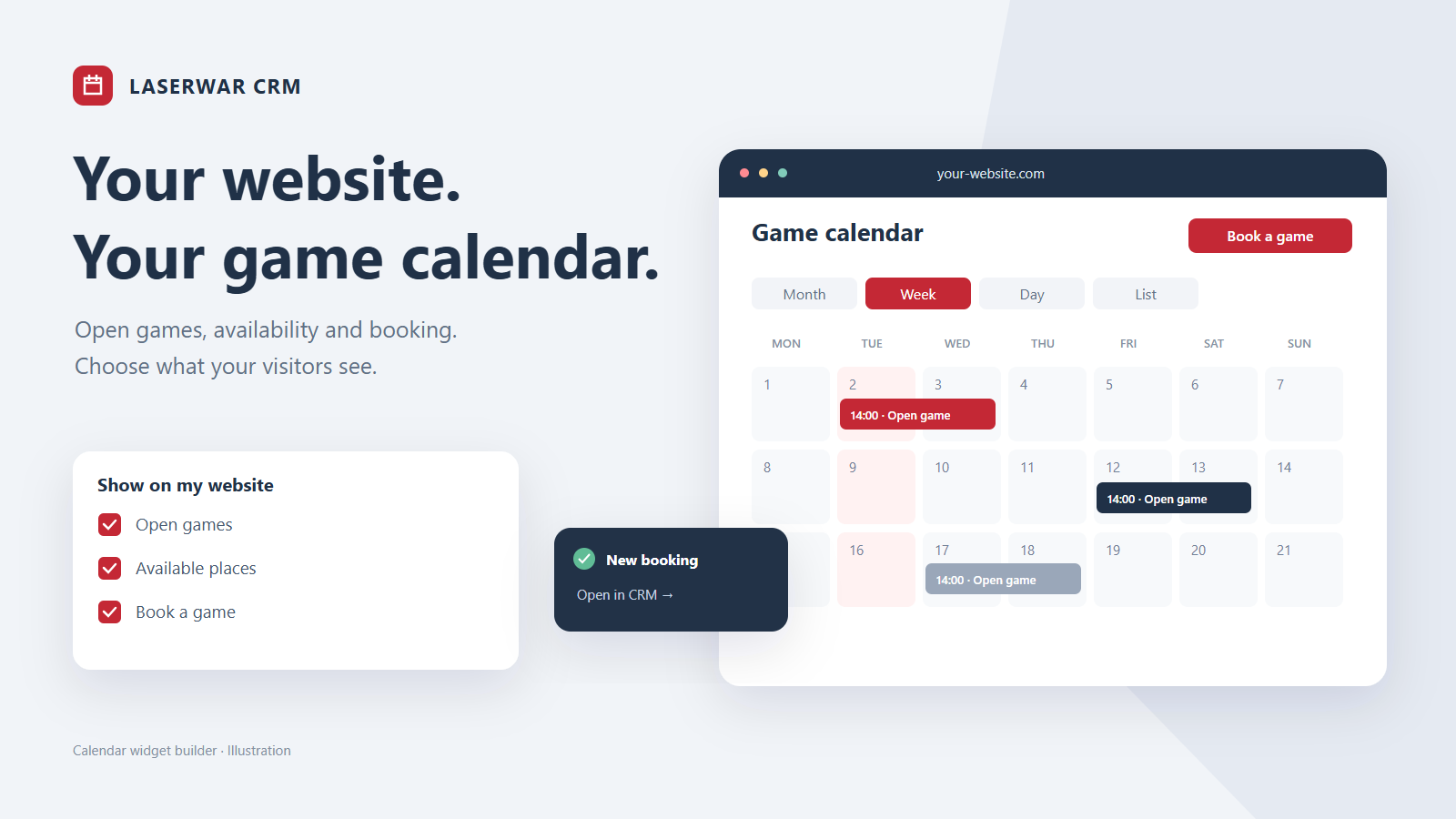
Put your club schedule on your own website. Visitors can choose an open game or request a private game for their team. The builder lets you choose the venues, game types and details your visitors can see.
Four ways to display your schedule
Use month to choose a date, week to compare times, day for a detailed schedule, or agenda for an easy phone experience. Choose the initial view and the view buttons you want to offer. Phones can have a separate default view.
Choose what is public
- Open games, reserved time or both.
- Selected venues, game types and event categories.
- Price, remaining places, duration and venue name, each controlled separately.
- A private booking button and open-game registration.
- Weekends, visible hours, how far ahead to show and the refresh interval.
Private orders appear only as reserved time. Customer names, phone numbers and comments are never sent to the public calendar. Cancelled games stay hidden; closed or full games can remain visible for information without an available registration action.
Match your website
Choose classic, soft, dark or minimal styling. Set your accent, background, reserved-time colour, heading, height and corner radius. Embed the calendar in the page or open it from a button. Your separate booking-form settings are preserved.
Install the calendar
- Open Mini-site → Widgets → Calendar.
- Select events, venues and appearance. Check desktop and phone previews. Preview mode creates no registrations.
- Save the settings and copy the embed code.
- Paste it into an HTML block on your website. Future changes only require saving the new settings in the CRM and reloading the website page.
If your calendar uses an older embed snippet, replace that snippet with the new one from the builder. Older code can contain fixed colour, event visibility and opening-mode overrides.
Check that it works
Select “Check widget”. It checks the saved settings and schedule and waits for the public calendar to finish loading, then shows the results and check time. An empty schedule is a valid result. This check creates no booking and does not claim that a notification was delivered.
Use the demo for a full booking test: open the calendar as a visitor, send a registration, find the order or participant in the CRM and follow the notification. A private request opens its exact order; an open-game registration opens the relevant game. Availability and capacity are checked again when the request is submitted.
Open CRM to configure your calendar · Separate booking form builder