In the “Equipment” subsection, a list of gaming equipment for your club is formed. Here you can view the list of available equipment, change the status of each unit and leave comments. In the future, equipment is selected from this list when formation of an application. The "Equipment" subsection is available only if in the subsection "Settings" - "General settings" the checkbox Do not keep track of equipment in applications is not selected.
To work with the subsection, go to the "Warehouse" section in the main menu and select "Equipment".
The central part of the window displays a list of gaming equipment.
The list can be easily filtered by the value of any column in the top row of the table (for example, displaying only units that require repair). You can change the data of a previously entered position by pressing the  in the line with its name. Items added manually can also be removed using the . To delete several values at once, check the boxes next to them on the left side of the list and click the .
New items of equipment are added to the list manually or by copying existing items.
To enter data for a batch of equipment with the same characteristics, you can use the copy function. To do this, click the 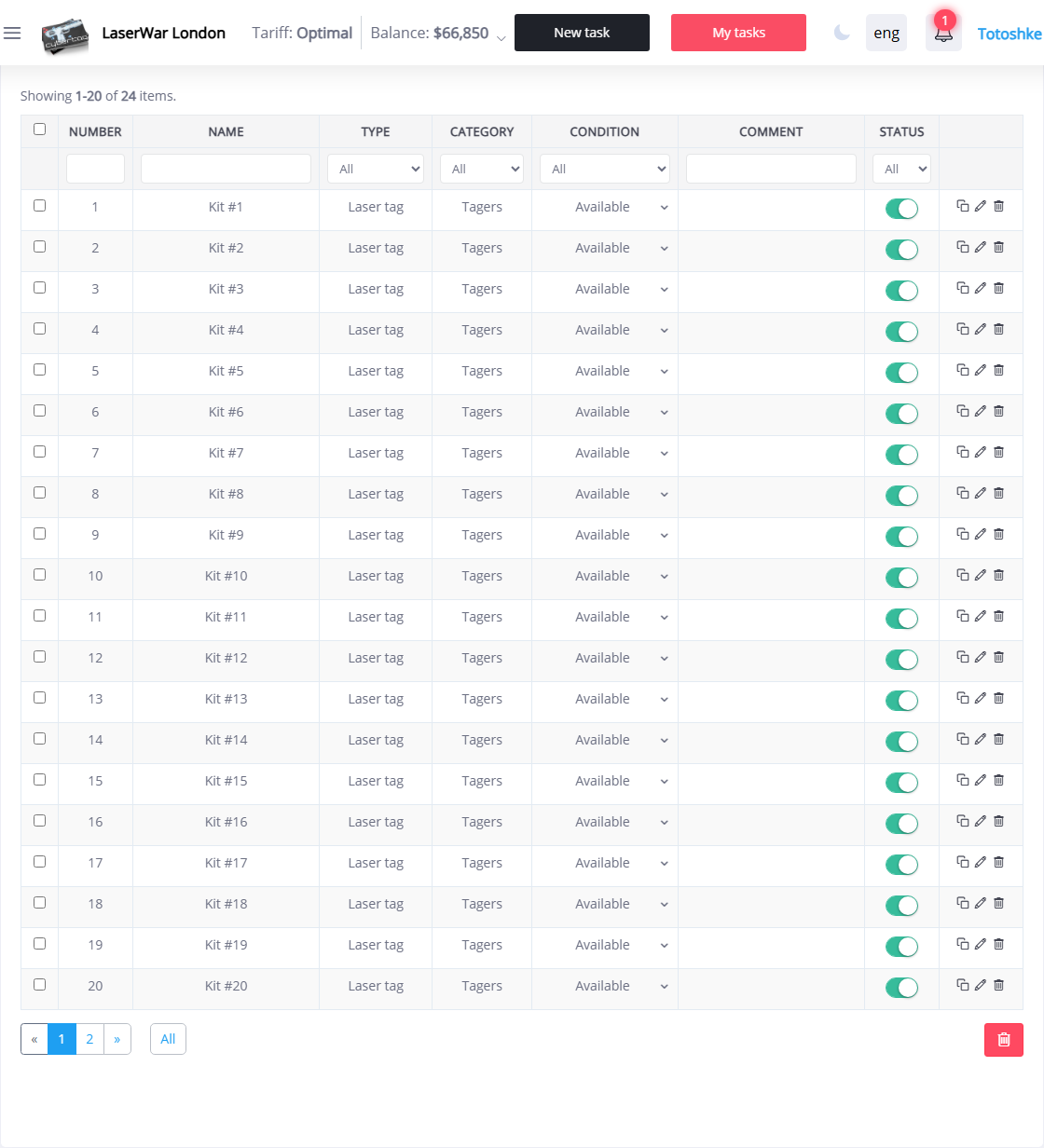 in the line with the name of the piece of equipment (to copy one item) or check the boxes on the left side of the window and click the Copy button. In this case, duplicates of the selected items will be added to the list, and their inventory number will be automatically changed.
To add a new piece of equipment, click the +Equipment button. When you first fill in the window that opens, you must indicate the inventory number of the piece of equipment in the field of the same name.
When you subsequently add items to the list, the value of the Number field will automatically increase by one (if necessary, the value can be changed manually).
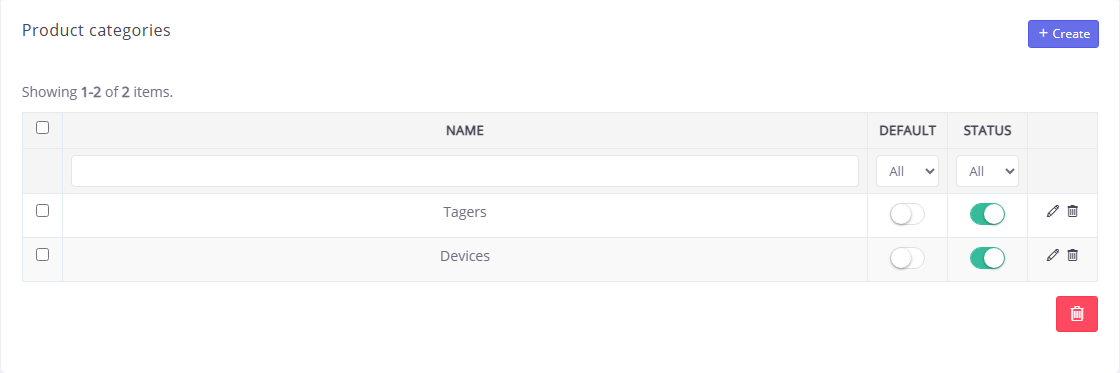
Enter the Name of the equipment in the field of the same name and select Category from the drop-down list (the list of equipment categories is configured in the subsection Settings - Equipment - Categories). Also, in the Game Type field, you must select the game for which the equipment is intended (the list of game types is configured in the subsection Settings - Games - Game Types), in order to filter the equipment when creating an application.
Equipment status must be selected in the list of the same name (the list of equipment statuses is configured in the subsection Settings - Equipment - Statuses). In the future, the list of equipment can be filtered by status: for example, display only faulty or only rented pieces of equipment.
In the Comment field you can enter an arbitrary note, for example, a description of the equipment breakdown.
For each position, you can specify its Status: "Enabled" or "Disabled" (positions with the status "Disabled" are not displayed in the selection lists).
Click theSave button to apply the changes.