In the “Products” subsection, a list of your club’s products is formed. Subsequently, goods are selected from this list when forming an application, and the final cost is calculated.
To work in the subsection, go to the "Warehouse" section in the main menu and select "Products".
A list of products is displayed in the central part of the window.
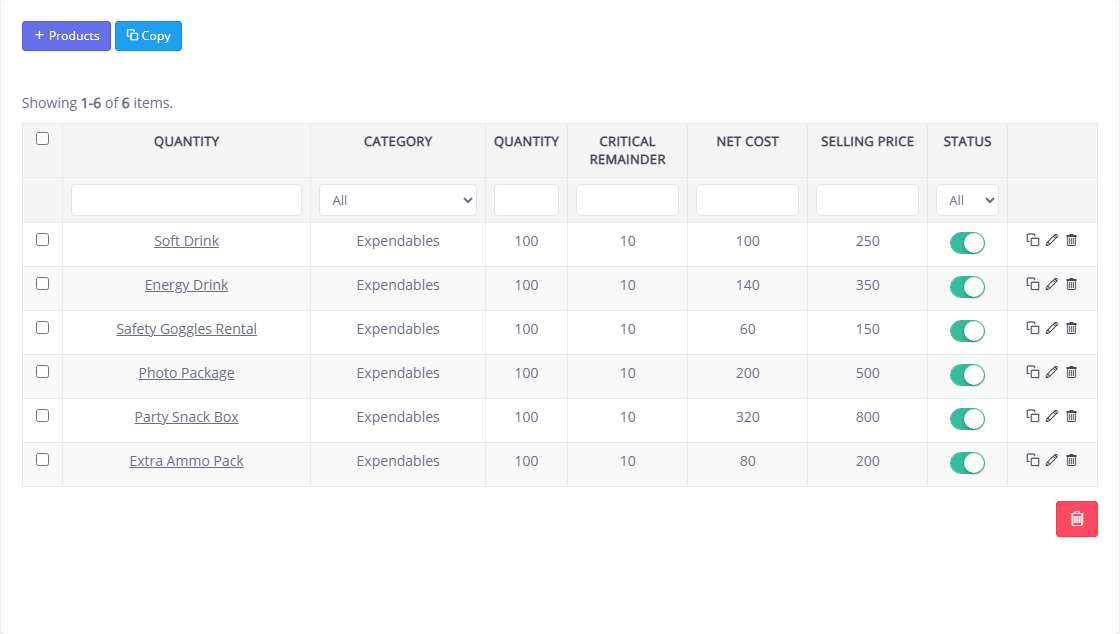
The list can be easily filtered by the value of any column in the top row of the table (for example, display only products of a certain category).
You can change the data of a previously entered position by clicking the  in the line with its name. Items added manually can also be removed using the . To delete several values at once, check the boxes next to them on the left side of the list and click the .
Data for new products is added to the list manually or by copying existing items.
To enter data for a batch of goods with the same characteristics, you can use the copy function. To do this, click the  in the line with the product name (to copy one item) or check the boxes on the left side of the window and click the Copy button. In this case, duplicates of the selected positions will be added to the list.
To add a new type of product to the list, click the +Products button. In the window that opens, enter the Name of the product in the field of the same name and select Category from the drop-down list (the list of equipment categories is configured in the subsection Settings - Products - Categories).
In the Quantity field, enter the initial balance of product units. This value can be changed in the future.
In the appropriate fields you must indicate the Cost of the product in rubles per unit and the Sales Price (the price that will be indicated in the application for the event when choosing this product).
Critical balance (the minimum quantity of goods at which a new batch must be ordered) should be indicated in the appropriate field. If the quantity of an item in stock is less than or equal to the specified value, a warning will be displayed in the list about the need to purchase this item.
In the Comment field, you can enter an arbitrary note, for example, a description of the product.
For each position you can specify its Status: "Enabled" or "Disabled" (positions with the status "Disabled" are not displayed in the selection lists, for example, with forming an application). Click the Save button to apply the changes.