Public booking page: yourclub.laserwar.club/book. Add the link to social media and your club website.
What the widget looks like
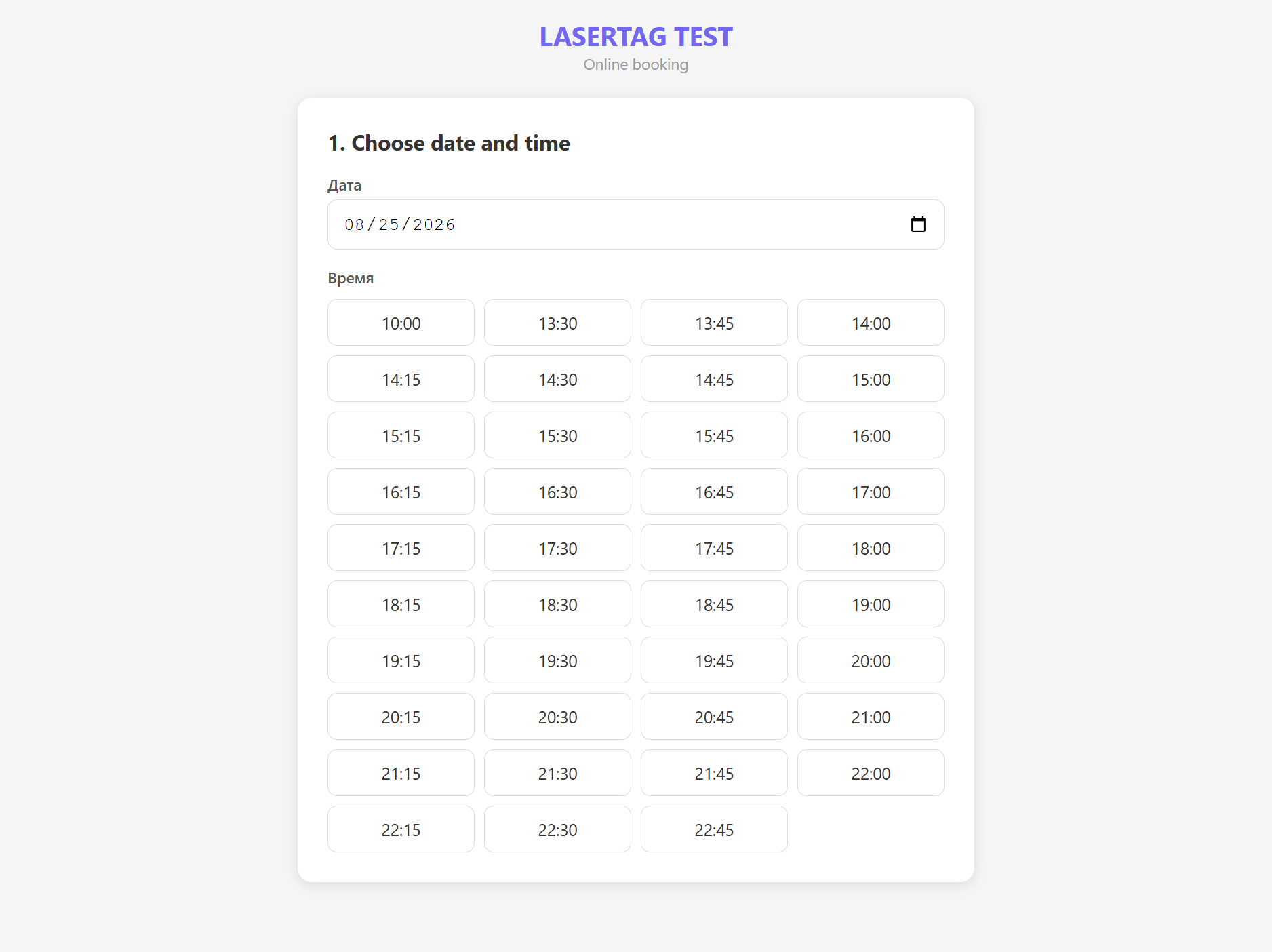
Step 1 — date and time. The guest picks a date; available slots respect busy orders and breaks.
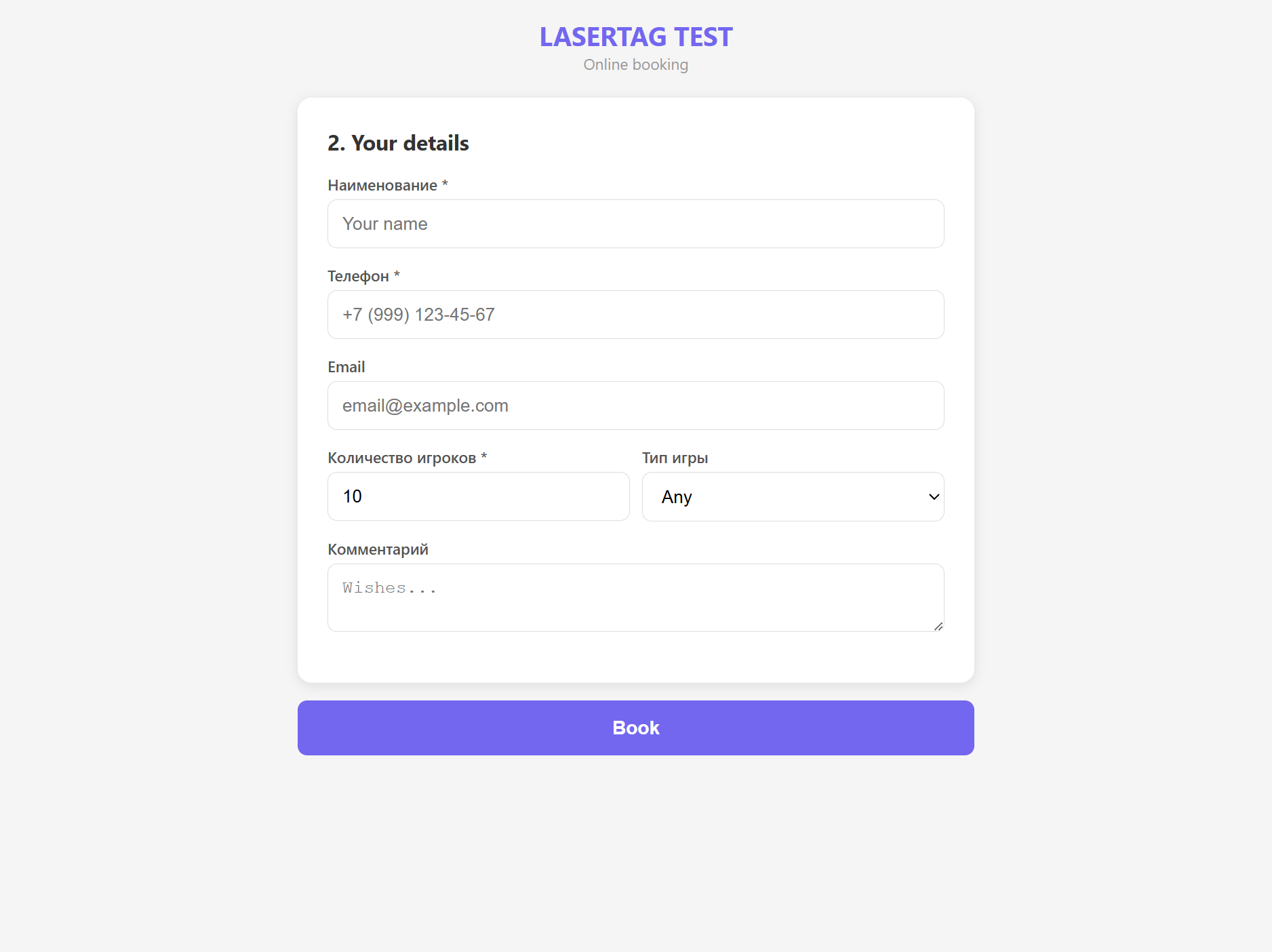
Step 2 — contact details. Name, phone, number of players, game type and comment.
Guest flow
- Picks a date and an available slot
- Fills in contact details and player count
- Receives an SMS with the order number
Notifications to managers and admins
After booking, the order appears in CRM and staff get the same notifications as for mini-site or widget orders:
- Email and SMS to staff — when mailing templates Site Order and New order from mini site are enabled; recipients are admins and managers selected in mailing settings
- SMS to the club phone — when an order notification phone is set in order settings
SMTP must be configured for email notifications (see the mail setup article).
What the manager sees
- Order in the CRM list with status Not processed
- New client is created automatically
- Manager confirms the booking manually